Getting started
Install the backer build, activate it, and stay current — everything the Connect+ Beta does today.
Connect+ is a desktop browser built around total per-profile isolation with uBlock-class ad & tracker blocking built in. This guide covers the build you have today; new sections appear here as campaign rounds complete.
Install
Install the build delivered to you as a backer:
| Platform | Formats |
|---|---|
| Windows | Installer (.exe) |
| Linux | deb · Flatpak · Snap · AppImage · tar.gz |
| macOS | Arrives later in the campaign |
No configuration is needed — the first launch walks you through language and theme, then asks you to sign in.
Activate
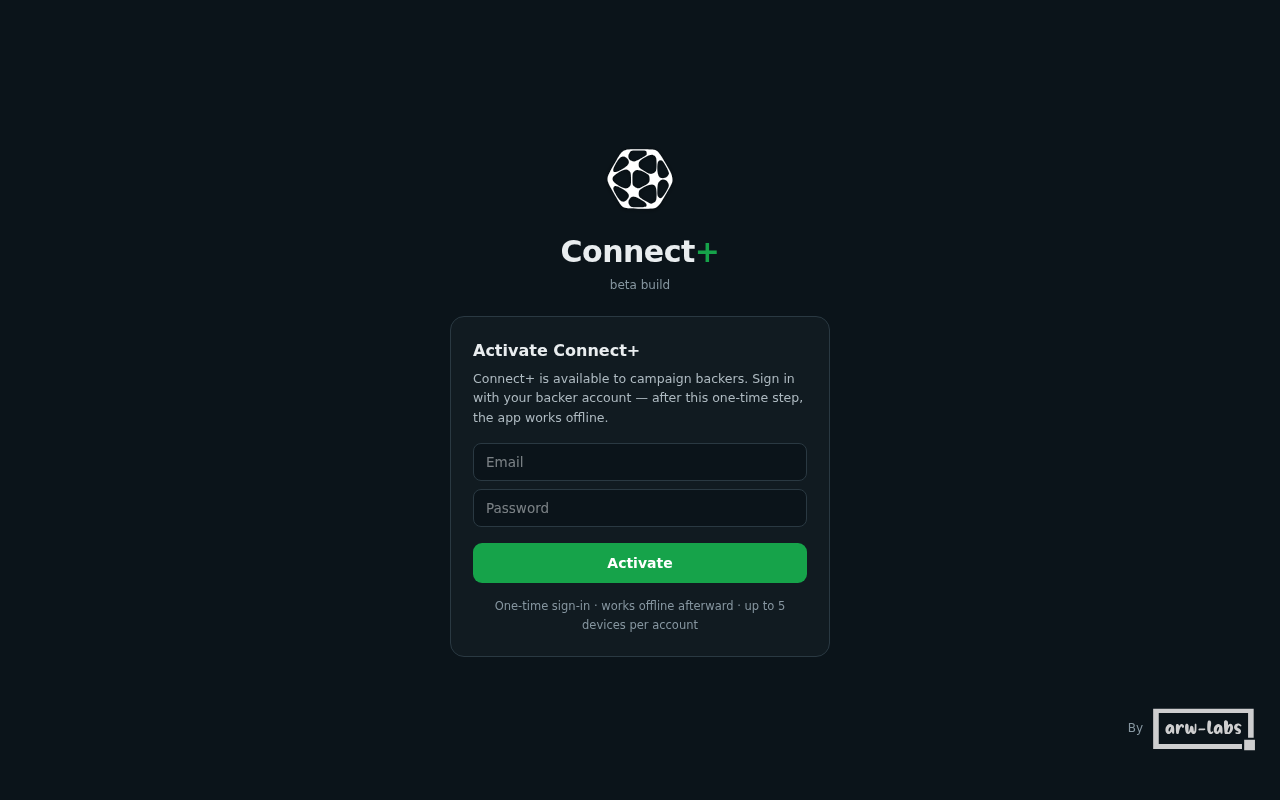
public/docs-img/user-guide/activation.pngSign in once with your backer account. Activation verifies your pledge and ties the install to your account — up to 5 devices. Your credentials go only to the account server, are never stored in the app, and none of your browsing data ever leaves your machine.
- Hit the device limit? Free a slot from Account & devices on this site (signing in again on an old machine re-activates it).
- Removing a device signs that install out within a day.
Stay current — automatically
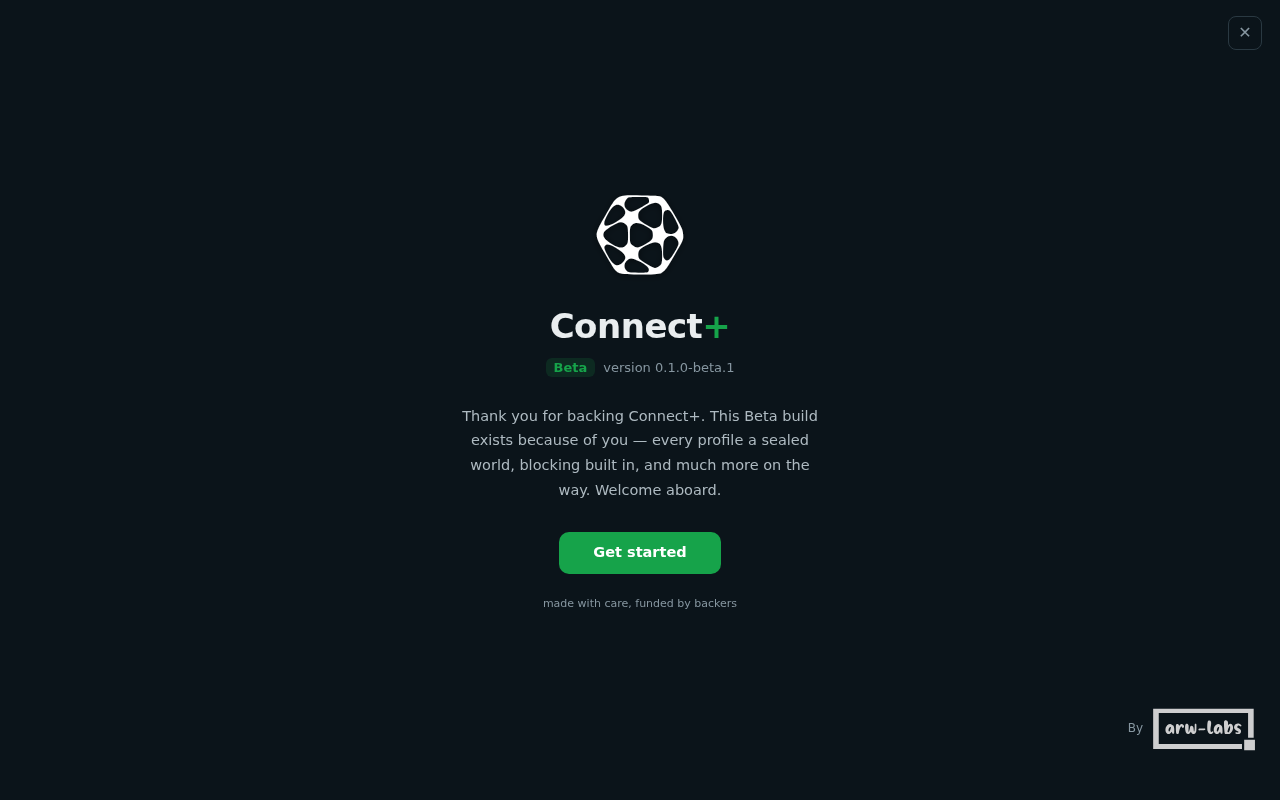
public/docs-img/user-guide/welcome.pngThe app keeps itself current: every build published to your channel downloads in the background and applies on the next restart, greeting you with what's new. You never re-download an installer.
- Re-show the welcome / what's-new screen anytime: Settings → About → What's new.
Your first five minutes
- Create a profile for each world you keep separate — Work, Personal, a client, a test environment. Each one gets its own everything (how isolation works).
- Pick your search engine — globally, or per profile (search & browsing).
- Save a password or a 2FA code — encrypted on your device, per profile (passwords & codes).
- Check the shield in the toolbar — ad & tracker blocking is already on.
Getting help
Found something broken? That's what the beta is for — report it through the campaign page and the fix lands in your install automatically. See what's in this build for exactly where the work stands.