Getting started
Install Connect+, activate it, and stay current — everything the app does today.
Connect+ is a desktop browser built around total per-profile isolation with uBlock-class ad & tracker blocking built in. It is free to use; a subscription adds the rest. This guide covers the app as it is today, and new sections appear here as new abilities ship.
Install
Download Connect+ for your platform:
| Platform | Formats |
|---|---|
| Windows | Installer (.exe) |
| Linux | AppImage · deb · rpm · Flatpak · tar.gz |
| macOS | Arrives in a later release |
No configuration is needed — the first launch walks you through language and theme, then asks you to sign in.
Activate
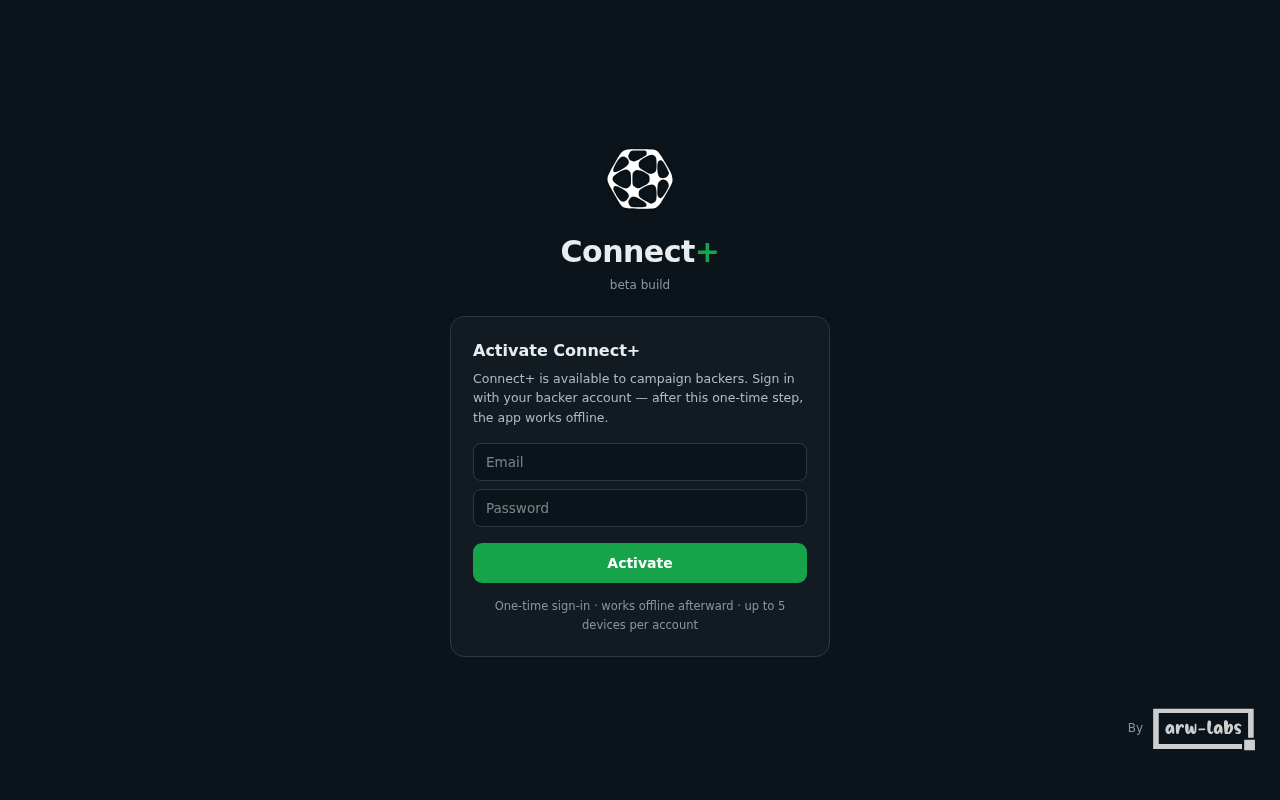
Sign in once with your Connect+ account — creating one is free. Activation ties the install to your account and tells the app what your plan includes. Your credentials go only to the account server, are never stored in the app, and none of your browsing data ever leaves your machine.
- A free account activates one device; a subscription covers up to five (what each plan includes).
- Hit the device limit? Free a slot from Account & devices on this site (signing in again on an old machine re-activates it).
- Removing a device signs that install out within a day.
Stay current — automatically
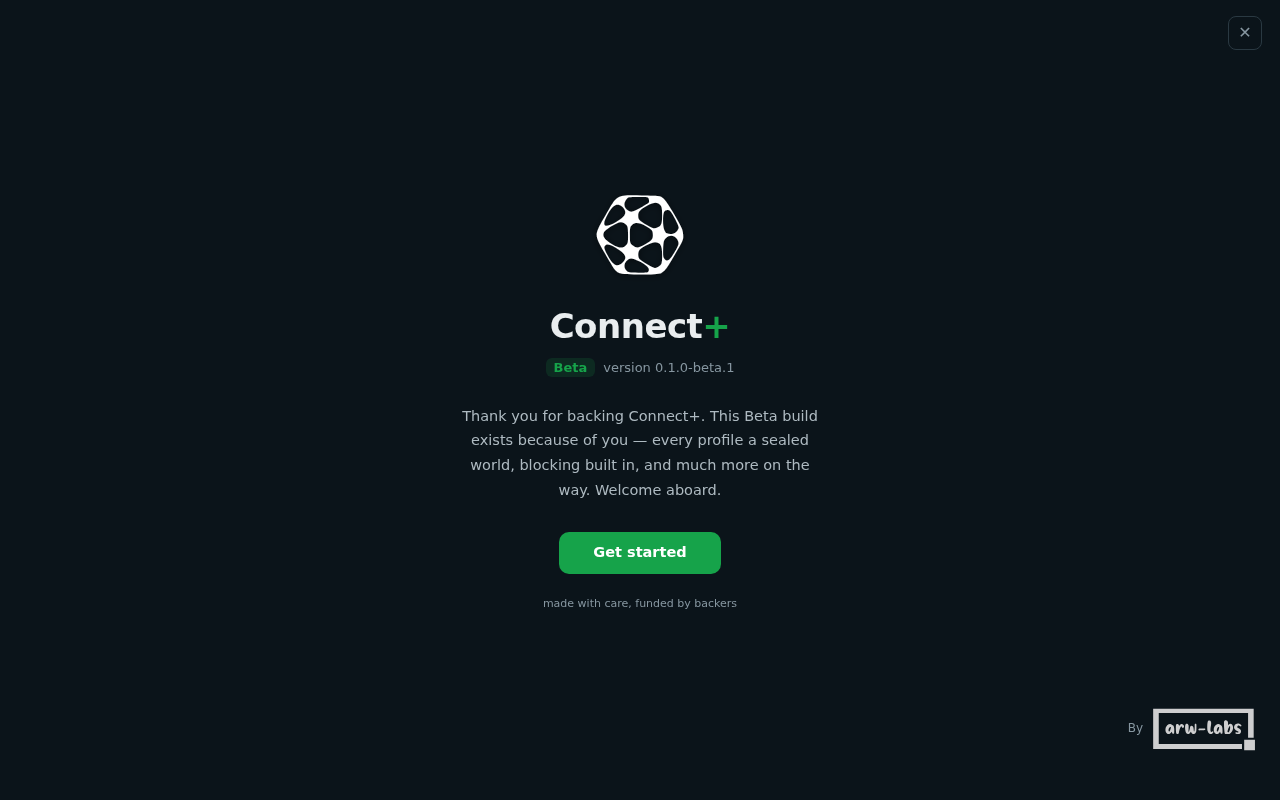
The app keeps itself current: every new build downloads in the background and applies on the next restart, greeting you with what's new. You never re-download an installer.
- Re-show the welcome / what's-new screen anytime: Settings → About → What's new.
Your first five minutes
- Create a profile for each world you keep separate — Work, Personal, a client, a test environment. Each one gets its own everything (how isolation works).
- Pick your search engine — globally, or per profile (search & browsing).
- Save a password or a 2FA code — encrypted on your device, per profile (passwords & codes).
- Check the shield in the toolbar — ad & tracker blocking is already on.
Getting help
Found something broken? Tell us — contact details are on arw-labs.com — and the fix reaches your install automatically with the next build. See what's in this build for what each plan includes.
What is Connect+
A desktop browser built for control, automation, and privacy — with a capable AI sidebar, a native extension platform, and a download accelerator.
Profiles & your data
How per-profile isolation works, private, hidden and password-locked profiles, what stays local, and how permissions behave.