Profile files
The files a profile keeps, the picker a site gets when it asks for one, saving downloads into them, and how they travel in a backup.
The files a profile keeps
Each profile has its own files — the ID scan a work profile uploads every week,
the picture a personal one reuses. Open them from the folder button in the
toolbar, or type connect://files in the address bar.
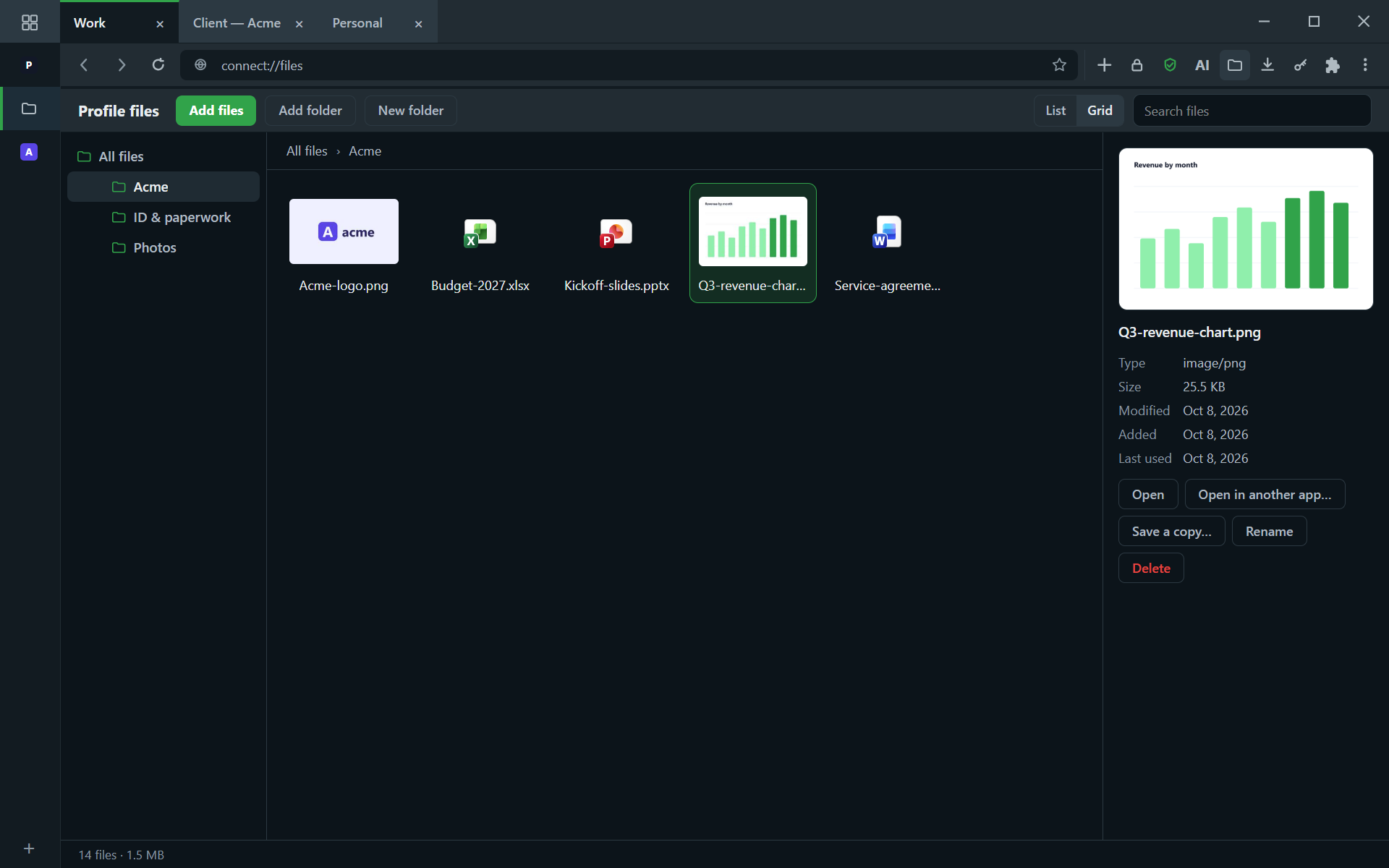
- Add files or a whole folder with the buttons, or drag them in from your computer.
- Sort them into folders; rename, move (drag onto a folder) and delete.
- Select as you do on your desktop: click a file, Ctrl+click to add or remove one, Shift+click to take a run of them, or press on empty space and drag a rectangle over the ones you want. What is selected is deleted, or dragged onto a folder by an icon or a name, together.
- Each file wears the icon your system uses for its kind, the same one you see
in your own folders, and a Windows program (
.exe) shows its own icon. In the grid view, pictures and videos show a preview instead. - Select a file to preview it, open it, or save a copy somewhere else.
- A finished download can be kept with the profile: hover it in the downloads list and choose Add to profile files.
Adding a file makes a copy. The original stays where it was.
A private profile has no profile files. It keeps nothing, so everything on this page is about ordinary profiles: in a private one, a site's "Choose file" and a download both use the usual system dialog.
If a file with the same name is already in the folder, you are asked whether to Replace it or Keep both.
With the keyboard
The page answers the keyboard as soon as it opens, with no click first.
- Type to filter. The letters go to the search field and the list narrows as you type, across every folder. Esc clears the filter.
- The arrow keys move through the files; Home and End jump to the first and the last. Hold Shift to select as you go, and Ctrl+A selects everything.
- Ctrl with the arrows moves without selecting, and Space selects or unselects the file you are on.
- Enter opens the folder or file you are on. Backspace goes up one folder.
- F2 renames, and Esc clears the selection. Delete deletes: it asks first, and Enter confirms.
The same keys work in the picker a site gets and in the save window, both described below.
Opening a file
- Open shows the file inside Connect+ when it can: pictures, video, sound and text in a viewer over the page, a PDF in a tab. Nothing is copied out of the profile to do it.
- Open in another app… is for everything else, and for editing. You choose where a copy is saved, and that copy opens. Changes you make are saved to that copy, not to profile files — add it back when you are done, and delete the copy if you do not want it left on your computer.
Saving a download into profile files
A download can go straight into the profile's files instead of a folder on your computer.
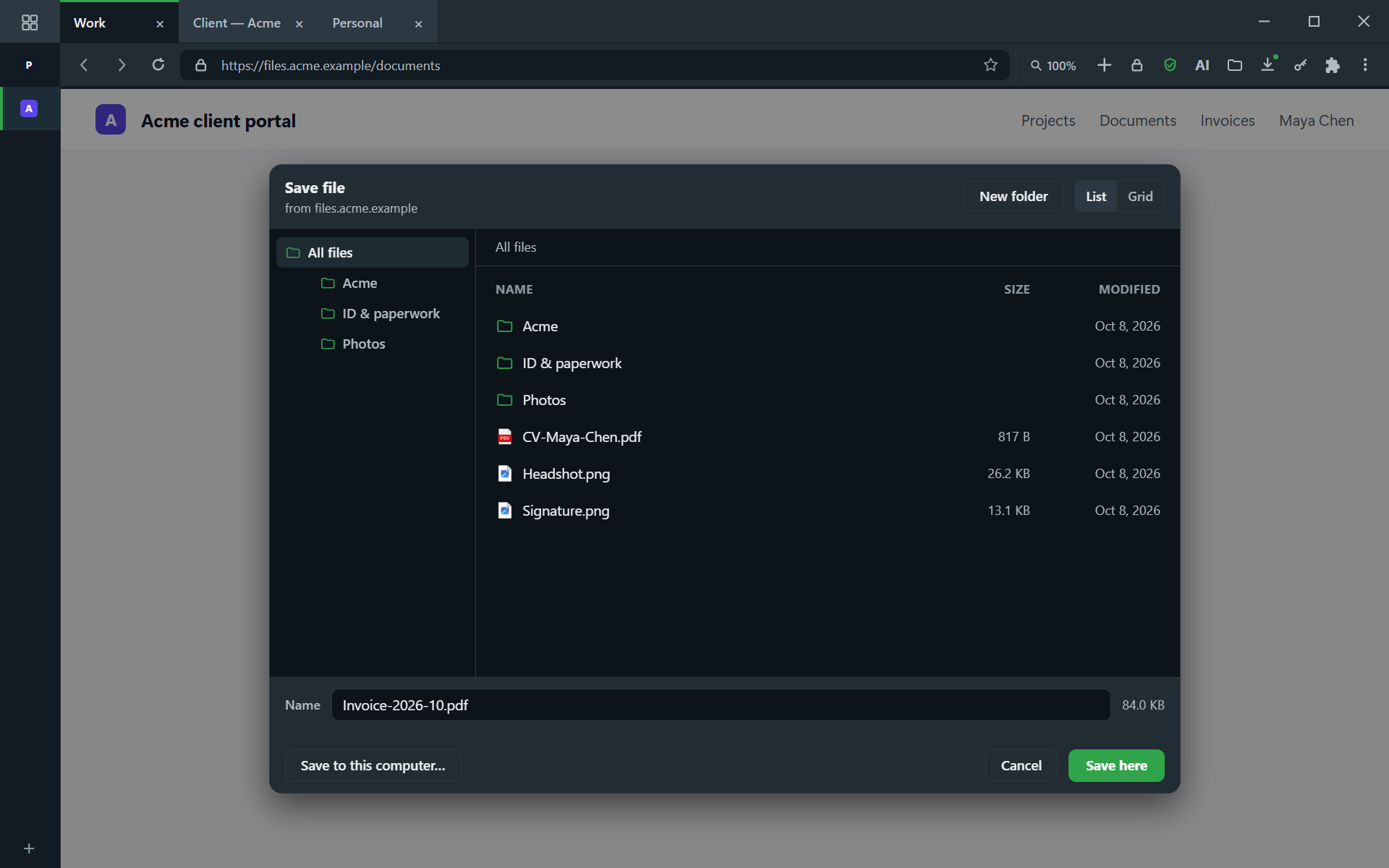
- With Ask every time, the save window shows the profile's files first. Pick a folder, change the name if you like, and press Save here — or Save to this computer… for the usual system dialog. The window starts on whichever of the two you used last.
- From the keyboard: what you type goes to the name, ↓ moves into the folders, Enter opens one and Backspace goes back up.
- If the name is already taken there, the line under it turns red and the button becomes Replace. The old file is replaced only once the new one has finished downloading.
- To skip the question altogether: Profile settings → Downloads → When downloading a file → Save to profile files.
- A download saved this way says In profile files in the downloads list, and opens from there.
Prefer the system dialog every time? Profile settings → Downloads → When asking where to save → Go straight to the system dialog. This is separate from the setting for uploads below.
The system dialog is still used in pop-up windows, in private profiles, and for downloads started by an extension.
When a site asks for a file
A site's "Choose file" button opens the profile's files first. Pick one — or several, when the site takes more than one — and press Choose.
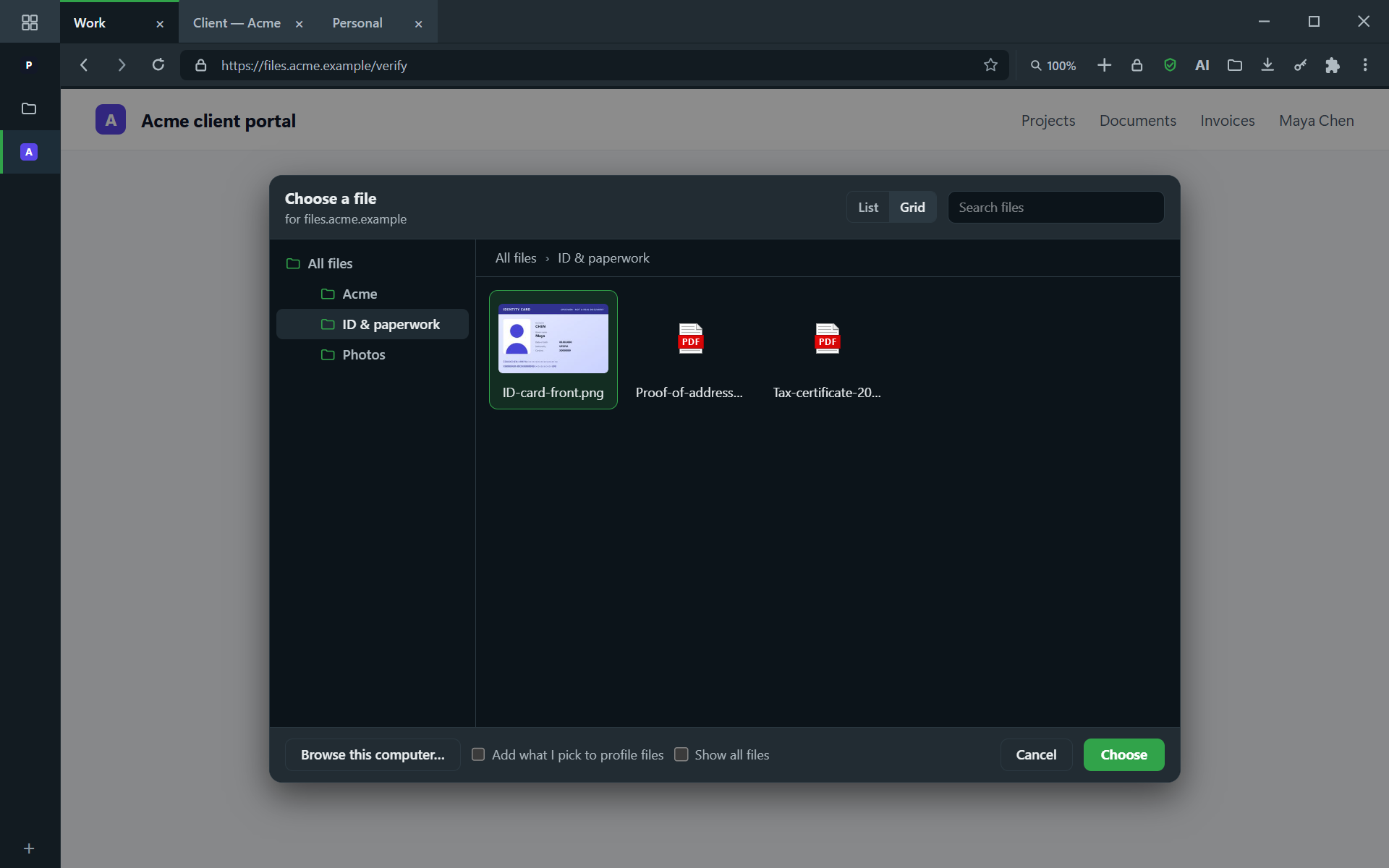
- Browse this computer… opens the usual system dialog for anything else. Tick Add what I pick to profile files to keep it for next time.
- The picker names the site that is asking, and shows only the kinds of file that site accepts. Show all files lifts that.
- The picker opens in the folder you last chose a file from. Each profile remembers its own.
- When the site takes several files, select them the same way (Ctrl+click, Shift+click, or a dragged rectangle) and the button counts them. Opening another folder starts the selection again.
- It works from the keyboard like the files page: type to filter, arrows to move, Enter to choose, Esc to cancel.
Prefer the system dialog every time? Profile settings → Downloads → When a site asks for a file → Go straight to the system dialog.
The system dialog is still used for folder uploads, in pop-up windows, and in private profiles, which keep nothing.
Kept private
- Files are encrypted on your device and tied to your account, the same way saved passwords are.
- A file is readable outside the profile only for as long as it has to be. A download on its way in is kept in Connect+'s own data, not your Downloads folder, and removed the moment it has been encrypted. A file you upload is handed to the site as a temporary copy, removed when that page moves on or its tab closes.
- A profile's files belong to that profile. Another profile cannot see them.
- A site receives only the files you pick, and only when you pick them.
- Deleting a profile deletes its files.
In a backup
Backup & restore (Settings → Backup) needs a subscription. Profile files
travel in a second file saved next to the backup — name.isofiles beside
name.isoprofile — locked with the same password.
- When you export, choose which files go.
- When you import, choose which come back.
- Keep the two files together. If the files archive is missing, the profiles still import, without their files, and the import says so.